媒体
参数说明
| 参数 | 类型 | 说明 |
|---|---|---|
| localId | string | 本地文件id |
localId安卓和鸿蒙规范为 "https://resource/文件唯一标识符",iOS规范为"qingtui://resource/文件唯一标识符.文件后缀"
用户取消关注轻应用后,相关localId缓存文件将被清空。
图片
chooseImage
调用qt.chooseImage拍照或从相册中选图
qt.chooseImage({
  count: 1, // 默认9
  sizeType: ["original", "compressed"], // 可以指定是原图还是压缩图,默认二者都有
  sourceType: ["album", "camera"], // 可以指定来源是相册还是相机,默认二者都有
  success: function (res) {
    var localIds = res.localIds; // 返回选定照片的本地ID列表,localId可以作为img标签的src属性显示图片
  },
});
参数说明
| 参数 | 类型 | 默认值 | 必填 | 说明 |
|---|---|---|---|---|
| count | number | 9 | 否 | 最多能选择的照片数量 |
| sizeType | array | ["original", "compressed"] | 否 | 可以指定是原图还是压缩图 |
| sourceType | array | ["album", "camera"] | 否 | 照片来源是相册还是相机 |
返回说明
| 参数 | 类型 | 说明 |
|---|---|---|
| localIds | array | 返回选定照片的本地ID列表,localId可以作为img标签的src属性显示图片 |
previewImage
调用qt.previewImage预览图片
qt.previewImage({
  btns: ["forward", "download"], // 界面按钮,forward转发按钮,download下载按钮
  current: "", // 当前显示图片的http链接
  urls: [], // 需要预览的图片http链接列表
});
参数说明
| 参数 | 类型 | 默认值 | 必填 | 说明 |
|---|---|---|---|---|
| btns | array | 否 | 界面按钮,forward转发按钮,download下载按钮 | |
| current | string | 是 | 当前显示图片的http链接 | |
| urls | array | 是 | 需要预览的图片http链接列表 |
chooseCropOCRImage
调用qt.chooseCropOCRImage选择并裁剪需要识别的图片,接口包含:1、裁剪需要识别的图片 2、仅识别税务发票上的二维码
qt.chooseCropOCRImage({
  sourceType: ["album", "camera"], // 相册或者相机
  title: "", // 裁剪界面显示的title
  type: 1 | 2, // 1:增值税发票 2:火车票
  success: function (res) {
    var localId = res.localId; // 本地图片id
    var qrResult = res.QRResult; // type=1时才有值
  },
});
参数说明
| 参数 | 类型 | 默认值 | 必填 | 说明 |
|---|---|---|---|---|
| sourceType | array | ["album", "camera"] | 是 | 相册或者相机 |
| title | string | 是 | 裁剪界面显示的title | |
| type | number | 是 | 1:增值税发票 2:火车票 |
返回说明
| 参数 | 类型 | 说明 |
|---|---|---|
| localId | string | 本地id |
| result | string | type=1时才有值,图片识别的值 |
ocrImage
调用qt.ocrImage识别图片,接口包含:1、识别税务发票(识别除二维码的所有文本信息)2、识别火车票(识别除二维码的所有文本信息)
qt.ocrImage({
  localId: "", // 本地图片id
  type: 1 | 2, // 1:增值税发票 2:火车票
  success: function (res) {
    var serverId = res.serverId; // 服务端图片id
    var result = res.result; // 识别结果,为json对象
  },
});
参数说明
| 参数 | 类型 | 默认值 | 必填 | 说明 |
|---|---|---|---|---|
| localId | string | 是 | 本地图片id | |
| type | number | 是 | 1:增值税发票 2:火车票 |
返回说明
| 参数 | 类型 | 说明 |
|---|---|---|
| serverId | string | 服务端图片id |
| result | string | type=1时才有值,图片识别的值 |
scanQRCode
调用qt.scanQRCode执行轻推扫一扫
qt.scanQRCode({
  needResult: 1, // 默认为0,扫描结果由轻推处理,1则直接返回扫描结果,
  success: function (res) {
    var result = res.resultStr; // 当needResult 为 1 时,扫码返回的结果
  },
});
参数说明
| 参数 | 类型 | 默认值 | 必填 | 说明 |
|---|---|---|---|---|
| needResult | number | 0 | 是 | 0扫描结果由轻推处理,1则直接返回扫描结果 |
返回说明
| 参数 | 类型 | 说明 |
|---|---|---|
| resultStr | string | 当needResult 为 1 时,扫码返回的结果 |
watermarkCamera
调用qt.watermarkCamera通过相机进行水印拍照,支持自定义时间样式和描述信息。
qt.watermarkCamera({
  dateStyle: "timeDate",
  dateFormat: "HH:mm",
  contentList: [
    "$locationAddress",
    "姓名:张三",
    "$locationLongitude",
    "$locationLatitude",
  ],
  success: function (res) {
    // res.localId 即为照片的本地ID
  },
  fail: function (err) {
    console.error("水印相机调用失败:", err);
  },
});
参数说明
| 参数 | 类型 | 必填 | 说明 |
|---|---|---|---|
| dateStyle | String | 否 | 时间样式,支持 timeDate(时间+日期模版)或 date(单日期模式) |
| dateFormat | String | 否 | 时间格式化字符串,如 "HH:mm"、"yyyy-MM-dd" 等 |
| contentList | Array | 否 | 自定义描述或字段列表,支持自定义变量 |
dateStyle 时间样式说明
1. timeDate(时间+日期模版)
显示完整的时间和日期信息。
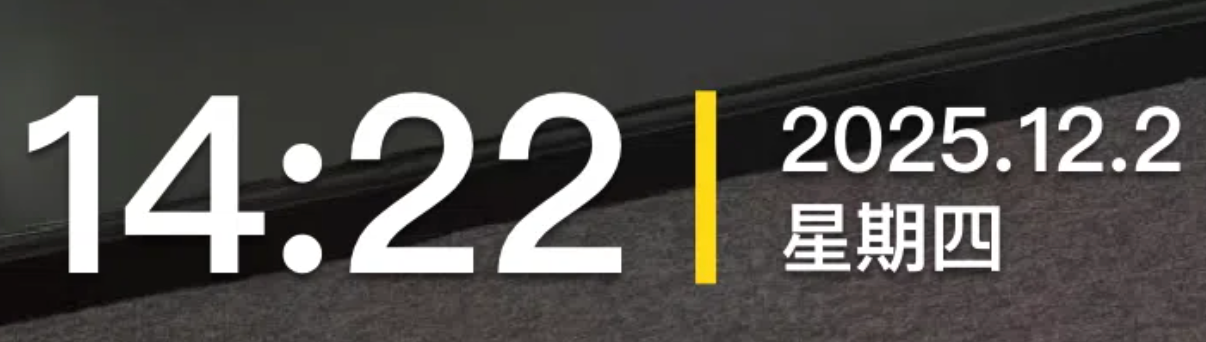
2. date(单日期模式)
仅显示日期信息。

dateFormat 时间格式化
通过 dateFormat 参数可以自定义时间的显示格式。例如传入 "HH:mm" 将只显示时分。
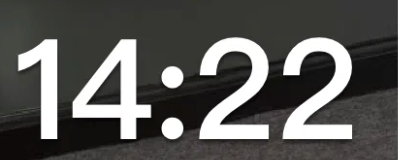
常见格式化占位符:
HH- 小时(24小时制)mm- 分钟ss- 秒yyyy- 四位年份MM- 月份dd- 日期
contentList 自定义内容
contentList 支持传入自定义文本和系统变量,系统会自动替换为实际值。
支持的自定义变量:
| 变量名 | 说明 |
|---|---|
| $locationAddress | 定位地址信息 |
| $locationLatitude | 定位纬度 |
| $locationLongitude | 定位经度 |
返回说明
| 参数 | 类型 | 说明 |
|---|---|---|
| localId | string | 本地文件id |
注意事项
-
离线场景
- 在离线环境下,定位信息可能不准确或无法获取
- 建议在网络可用时进行位置信息采集
-
权限要求
- 需要用户授权相机权限
- 如使用定位变量,需要用户授权位置权限
示例:
- 使用时间+日期模版
qt.watermarkCamera({
  dateStyle: "timeDate",
  success: function (res) {
    console.log("拍摄成功,本地ID:", res.localId);
    // 可将 localId 用于后续操作,如上传到服务器
  },
});
- 自定义时间和位置信息
qt.watermarkCamera({
  dateStyle: "date",
  dateFormat: "yyyy-MM-dd HH:mm:ss",
  contentList: [
    "巡检人员:张三",
    "$locationAddress",
    "经度:$locationLongitude",
    "纬度:$locationLatitude",
  ],
  success: function (res) {
    // 上传照片到服务器
    uploadPhoto(res.localId);
  },
  fail: function (err) {
    alert("拍照失败:" + JSON.stringify(err));
  },
});
录音
startRecord
调用qt.startRecord开启录音
qt.startRecord();
stopRecord
调用qt.stopRecord停止录音
qt.stopRecord({
  success: function (res) {
    var localId = res.localId;
  },
});
onVoiceRecordEnd
调用qt.onVoiceRecordEnd监听录音自动停止
qt.onVoiceRecordEnd({
  // 录音时间超过一分钟没有停止的时候会执行 complete 回调
  complete: function (res) {
    alert("录音超过1分钟" + res.localId);
    var localId = res.localId;
  },
});
playVoice
调用qt.playVoice播放录音
qt.playVoice({ localId: "localId" });
stopVoice
调用qt.stopVoice停止播放录音
qt.stopVoice({ localId: "localId" });
onVoicePlayEnd
调用qt.onVoicePlayEnd监听录音播放停止
qt.onVoicePlayEnd({
  success: function (res) {
    alert("录音" + localId + "播放结束");
    var localId = res.localId; // 返回音频的本地ID
  },
});
常见问题
Q1: 为什么调用水印相机没有反应?
A: 请检查:
- 是否在轻应用环境中调用
- 是否已授予相机权限
- 设备是否支持相机功能
Q2: 定位信息显示不准确怎么办?
A:
- 确保已开启 GPS 定位
- 在室外开阔地带尝试重新定位
- 检查是否授予了位置权限
Q3: 自定义变量不生效?
A: 请检查变量名是否正确,支持的变量为:
$locationAddress$locationLatitude$locationLongitude